
Can T Open a Pdf
Can t open a pdf. Can't open a PDF? Try these proven fixes for corrupted files, browser issues, and security blocks. Get your document working in minutes.
On this page
A volunteer is waiting for clearance, a coordinator has a shift to fill, and the PDF containing the agreement or screening information refuses to open. The browser shows a blank page, the phone displays an error, or the downloaded file appears to do nothing. The problem looks small, but it can stop onboarding completely.
When someone says, “I can't open a PDF,” don't start by reinstalling every application on the device. Separate the problem into three questions: Is the download complete? Is the viewer working? Is the document usable in the first place? That sequence finds the quickest safe fix while protecting sensitive volunteer and background-screening records.
Table of Contents
- Why This Happens More Than You Think
- The First Things to Check Before Anything Else
- How to Tell Whether the File Is Actually Damaged
- The Hidden Problem With PDFs That Actually Open
- What Works Best Across Devices and Security Settings
Why This Happens More Than You Think
PDF trouble isn't a sign that you made a mistake or that the sender necessarily created an invalid document. Adobe introduced PDF in 1993 to preserve document layout across applications, operating systems, and hardware, as described in Adobe's history and accessibility overview of PDF. The first release, PDF 1.0, represented text, graphics, fonts, and images in a consistent final form.
The format later became broader than one company's software. PDF 1.7 became an international standard in 2008, through ISO 32000-1:2008. PDF 2.0 followed as ISO 32000-2 in 2017. That long evolution means “PDF” describes a family of files with different revisions, embedded features, encryption settings, forms technology, compression methods, and extensions.
A volunteer agreement may open perfectly for the coordinator who created it and fail for the person completing it. A screening report may work in a desktop application but not inside a browser preview. A password-protected file may appear damaged when the actual issue is that the recipient hasn't entered the organization-set password.
Practical rule: Treat compatibility as a technical question, not as evidence that the document is invalid.
The common causes are straightforward:
- Outdated viewer: The application doesn't support a feature used by the document.
- Incomplete download: The transfer stopped before all file data arrived.
- Damaged structure: Internal object data or cross-reference information no longer lines up.
- Browser or network issue: The file is locked, blocked, or being served incorrectly.
- Unsupported features: Dynamic forms, encryption, embedded content, or advanced compression can exceed what a particular reader handles.
Start with the fastest filter. Download the file again, save it locally, and open that copy in an up-to-date trusted viewer. If the volunteer can proceed after that, stop troubleshooting. The priority is a completed onboarding step, not an elaborate diagnosis.
The First Things to Check Before Anything Else
Work from the outside in. Test the transfer and the environment before assuming the PDF's internal structure is broken.
Start with a clean local copy
If the file came from a browser, cloud folder, email attachment, or network share, save it to the device first. Don't keep opening the preview version. Preserve the original as read-only, then create a fresh local copy and test it with an updated Acrobat or Reader installation.
Check the file size against what the sender or publishing system reports. If the publisher provides an expected size and your download is smaller, download it again over a stable connection. A partial file often produces the same vague error as a corrupted document, so file size is a fast way to separate transfer failure from viewer failure.
Adobe's PDF repair guidance recommends updating the viewer, using Help > Repair Installation, checking browser PDF settings when the failure happens online, and retrying the download when transfer corruption is plausible.
Change one variable at a time
Don't test five applications and five downloads simultaneously. Use a simple comparison:
| Test | What it tells you |
|---|---|
| Browser preview fails, local copy opens | Browser integration or network delivery is the likely fault |
| Local copy fails in one viewer, opens in another | The first application has a compatibility or installation problem |
| Local copy fails in every trusted viewer | The file itself, its encryption, or its advanced features need investigation |
| File opens on desktop but not on phone | Mobile support, file size, forms, or embedded content may be involved |
If a local copy opens while the browser or shared drive version doesn't, the likely fault is transport, permissions, locking, or browser integration, not the PDF's internal structure. That distinction saves coordinators from repeatedly reinstalling software while a network service keeps delivering the same incomplete object.
Protect the original
Never repair over the only copy. Compare the original and downloaded versions by file size and, when your team has the tools, cryptographic hash. A changed hash means the bytes differ. That doesn't by itself prove corruption, but it confirms that the two files aren't identical.
If the document contains screening information, volunteer addresses, identity details, or signed agreements, don't upload it to an unfamiliar online repair service. A repair site may solve the technical problem while creating a privacy problem your nonprofit can't undo.
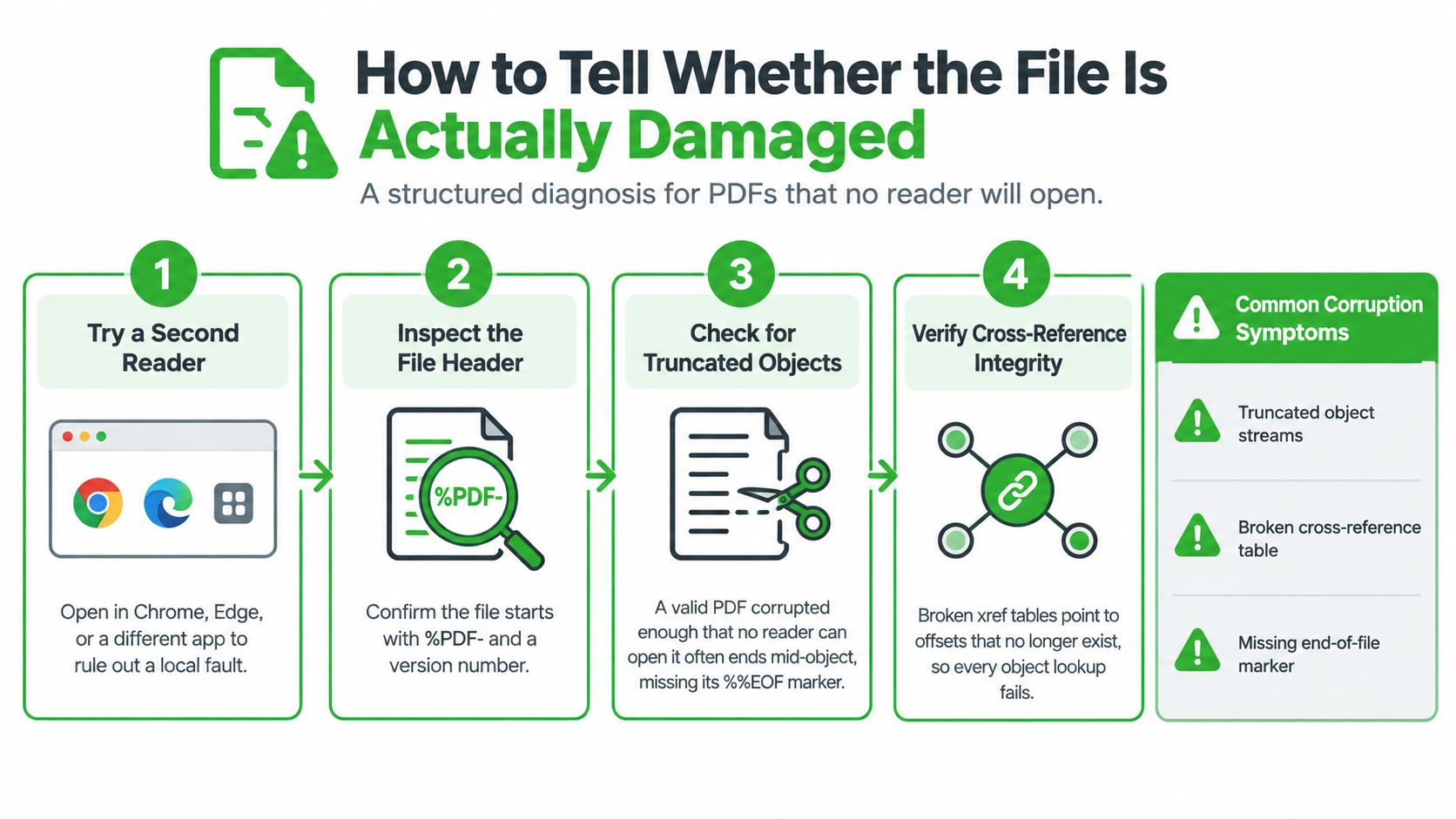
How to Tell Whether the File Is Actually Damaged
A PDF can be broken internally even when the filename ends in .pdf. Downloads sometimes return an HTML error page, a zero-length file, or a truncated document with enough data to look legitimate. Reinstalling the reader won't restore object data that never arrived.
Use a practical structural check
A technically advanced check doesn't require guessing. It asks whether the file has the basic markers and relationships a reader needs.
- Try a second trusted reader. Open the local copy in an updated desktop viewer and a different trusted application. If both fail, move beyond application troubleshooting.
- Inspect the beginning. A normal PDF typically starts with a
%PDF-header followed by a version number. If the first bytes contain HTML or a portal error message, the download isn't a PDF at all. - Inspect the end. Search near the end of the file for
%%EOF. A missing marker can indicate truncation, although structural validation is more reliable than a visual search alone. - Check the file's condition. A zero-length or suspiciously short file points to a failed transfer. Ask the sender to regenerate or resend it through the official system.
- Validate the structure. A standards-aware validator or repair-capable parser can inspect cross-reference data and rebuild it into a new output file.
Cross-reference data maps PDF object numbers to byte offsets. The trailer directs the reader toward the document catalog. If objects were truncated or an incremental update was interrupted, those offsets may point to data that no longer exists. Modern documents can also use compressed cross-reference streams or hybrid structures, so a simplistic text edit can make the damage worse. The qpdf documentation on object streams explains why these internal structures need a standards-aware tool.
Don't delete bytes blindly. Offsets, object streams, encryption dictionaries, incremental updates, and attachments can all depend on the exact byte layout.
For a nonprofit team, the operational decision is more important than the file-format theory. If the file came from a background-screening workflow, ask the provider to regenerate it or retrieve it from the original account rather than experimenting on the only copy. If the document is a volunteer agreement, request a new export from the source document. Adobe notes that direct repair may be impossible when the underlying content is incomplete, and recreating the PDF from the authoring source may be the correct fallback.
This same discipline applies to web operations. If a volunteer portal sends people to a dead download or an error page, use a structured resource such as how to find 404 errors to check the path, redirect, and destination instead of assuming the volunteer's device is at fault. For a screening workflow that needs a compliant notice while access is blocked, keep the relevant pre-adverse action notice template available in the organization's controlled system.
If a parser succeeds but pages render incorrectly, don't declare victory. Check every page, font, annotation, hyperlink, form field, signature, and metadata element. Exporting pages individually or regenerating the file can remove signatures, accessibility tags, form fields, and provenance. A technically openable replacement that loses legal or operational content isn't a successful repair.
The Hidden Problem With PDFs That Actually Open
“Opens” is a weak success criterion. A volunteer may see every page but still be unable to search the document, select text, translate instructions, move around with a keyboard, or use a screen reader. In an onboarding call, that failure sounds like “I can't open the PDF” because the document isn't usable for the person who needs to complete it.
Accessibility research reviewed 20,000 papers published from 2014 through 2023 and found that only 3.2% of PDFs met all accessibility criteria, while 74.9% failed at least one criterion, according to the reviewed accessibility research. Another review found that 91% lacked tagged headings and 58% lacked tags. Those figures describe a broad document problem, not a reason to blame a volunteer who reports difficulty.
Diagnose the symptom, not just the error message
Use the visible behavior to choose the next action:
- The viewer crashes or shows a blank page: Suspect corruption, rendering failure, unsupported content, or a security block. Test a fresh local copy in another trusted viewer.
- Pages appear, but no text can be selected: The file may be a scanned image or lack OCR. Request a searchable, OCR-processed version rather than asking the volunteer to struggle with it.
- Text is selectable but search results are unreliable: The document may contain poor OCR or a broken text layer. Ask for a regenerated copy.
- A screen reader reads content in the wrong order: The PDF likely needs tags, headings, or corrected reading order.
- A form displays but fields don't work: The document may use dynamic form technology that the current viewer doesn't support.
Choose the right format for the task
| Situation | Better choice |
|---|---|
| Signed agreement with a fixed layout | Tagged PDF with selectable text and working fields |
| Scanned historical record | OCR-processed PDF, checked for recognition errors |
| Plain instructions for volunteers | Accessible HTML or a plain-English document |
| Mixed training materials | A deliberate combination of formats, informed by guidance on how to mix media in presentations |
Don't tell users to disable security features just to make an inaccessible file work. Remediate the document or provide an accessible replacement, especially for public-service, education, health, and nonprofit materials. For coordinators preparing readable operational documents, the plain-English report writing guide is a useful complement to PDF troubleshooting because clear source content makes accessible output easier to produce.
What Works Best Across Devices and Security Settings
Mobile access changes the first-line response. One industry estimate places 63% of PDF views on smartphones and tablets, as reported by Smallpdf's PDF statistics overview. A phone may open a simple informational PDF while failing on a dynamic form, embedded multimedia, encrypted document, or very large file that a desktop viewer handles without complaint.
Use the safest sequence first:
- Download again. Use a stable connection and save the file to the device instead of relying on an in-browser preview.
- Confirm the source. Open the official sender or organization portal directly. Don't use a suspicious redirect or a file with a mismatched extension.
- Try a trusted alternative. Test the current official viewer or another reputable application. The purpose is diagnosis, not installing random software.
- Move to a desktop for complex files. Dynamic forms, embedded content, advanced encryption, and large documents often need a fuller viewer.
- Keep sensitive files private. Don't upload volunteer screening reports, identity documents, or signed agreements to unknown repair services.
- Ask for a replacement when needed. Request an accessible, regenerated, or non-dynamic version rather than weakening device protections.
Security warnings are not automatically defects. Protected mode may be stopping malicious content from executing.
That warning matters in volunteer coordination. A coordinator under deadline pressure may click through a protection prompt because a person is waiting to start a shift. Don't make that the standard operating procedure. First verify the source, download, password, and viewer. If the PDF is password-protected, confirm that the organization-set report password is being used rather than treating the prompt as proof of corruption.
For forms that need a controlled approval trail, a digital consent workflow may be more reliable than passing a fragile attachment between devices. Review the digital consent form option when the process requires a volunteer to authorize screening or complete an agreement from a phone. The right answer isn't always “find a stronger PDF reader.” Sometimes it's to replace a poor document handoff with a secure, accessible workflow.
Once the local copy works, record the fix for the next onboarding call: source location, viewer used, password process, and whether mobile access is supported. That small operational note prevents the same issue from delaying another volunteer.
VolunteerBadge offers nonprofit teams password-protected report PDFs, digital disclosure and authorization, and screening workflows designed for volunteer onboarding, so a blocked document doesn't have to stall the entire process. Visit VolunteerBadge to review a screening workflow that keeps sensitive records controlled and gives coordinators a clearer path from authorization to usable results.
